AdSpeeder: speeding through video ads
3 min read
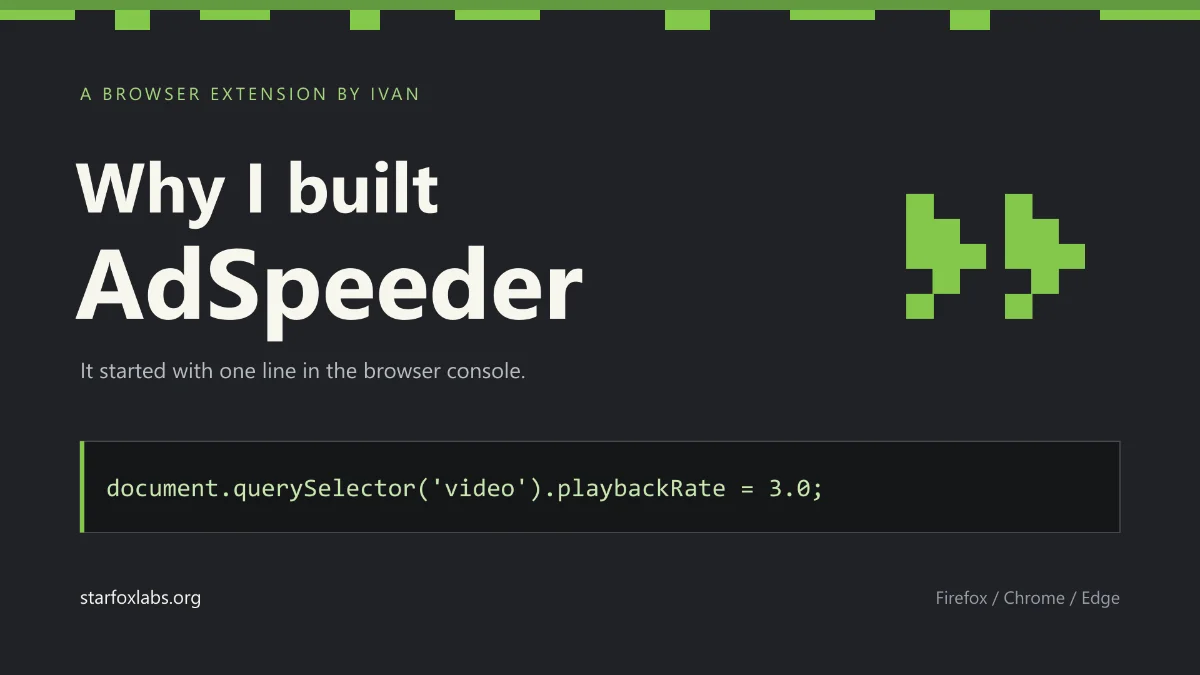
AdSpeeder is a browser extension that speeds up video ads, optionally mutes them, and puts your playback settings back when the ad ends.
The idea sounds small. The awkward part is making sure the episode doesn’t come back sounding like a chipmunk. Why I built it I wanted to try a different approach to handling video ads: let them play, but spend less time watching them.
AdSpeeder doesn’t block requests or remove advertising elements. It changes the video’s playback speed while an ad is detected, then restores the speed and mute state that were there before it started.
That last detail became the centre of the project. If I’m watching at 1.5× with sound on, those are the settings I want back. Restoring everything to 1× would technically stop the boost, but it would also overwrite my choice. How it works The extension uses TypeScript and WXT, a framework for building browser extensions. It targets Manifest V3, the extension format used by current browsers, and builds separate versions for Firefox, Chrome and Edge.
The code has two main parts: platform adapters and a shared playback engine.
An adapter looks at a particular website and reports evidence that an ad is playing. The engine decides when to boost, saves the previous playback settings, and handles restoration. Keeping those responsibilities separate means Netflix’s selectors don’t need to appear inside the playback engine.
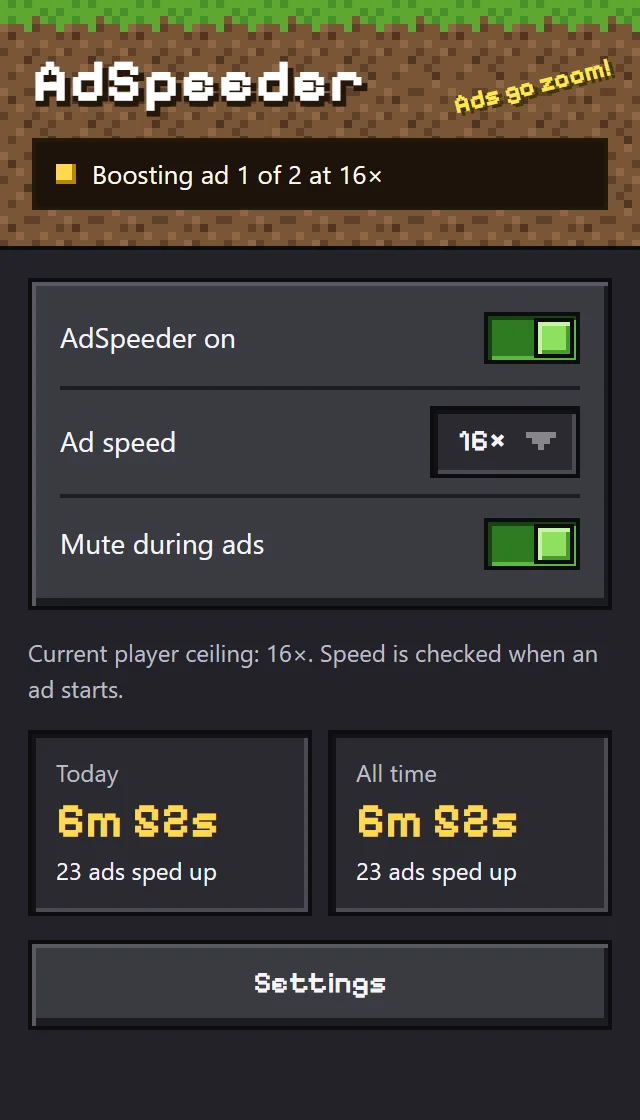
The browser also gets a say in the speed. AdSpeeder can request up to 16×, but it checks what the video element accepts and falls back when a rate is rejected.
That check has a limit: a browser accepting a playback rate doesn’t prove that a streaming service will play smoothly at that speed. Buffering and the service’s own player behaviour still need testing.
They didn’t match the player I was using.
To investigate, I captured changes to the player’s classes and data-uia attributes. These are attributes Netflix adds to elements in its interface. I then compared the page during an ad and after the episode resumed.
During the ad, an element marked ads-info-text contained the text Ad. After content resumed, that element was absent.
The detector now uses that observed label. It’s a much better starting point than the original guesses, though it currently depends on the English label. Netflix support remains experimental. Making the selected speed mean something Another confusing detail was the difference between the popup’s selected speed and the platform’s own limit.
The popup offered 16×, but Netflix had a separate 4× cap. Selecting 16× therefore still resulted in a maximum attempt of 4×.
I’ve now raised Netflix’s cap to 16×, while keeping the browser rejection fallback. Playback at that speed on a real Netflix stream is still something I need to verify. Restoring playback at the right moment Stopping the boost is more involved than writing the old speed back.
The engine restores the rate as soon as it suspects an ad has ended, then confirms the transition before completing restoration. This helps avoid playing ordinary content at the boosted rate.
Testing also exposed a Chromium behaviour where queued media can continue to advance briefly after the rate drops. That makes timing assertions more complicated than checking that a property changed. What’s tested so far Local checks passed 299 unit tests and eight automated browser tests. The browser tests use local player fixtures, so they can exercise ad transitions without accounts, live ads or requests to YouTube and Netflix.
I’ve also manually checked YouTube in Chrome, Firefox and Edge, and Netflix in Firefox.
There’s still work to do. A GitHub Actions run exposed a timing failure in the YouTube ad-pod test: content advanced just over its 350 ms allowance. I haven’t resolved that yet, so I’m treating the project as a review candidate rather than a finished release.
Try it
The GitHub repository https://github.com/IvanGiovany/AdSpeeder includes instructions for building and loading the extension in Firefox, Chrome or Edge.
There’s also a repeatable automated test suite if you want to explore the behaviour without waiting for a real ad.
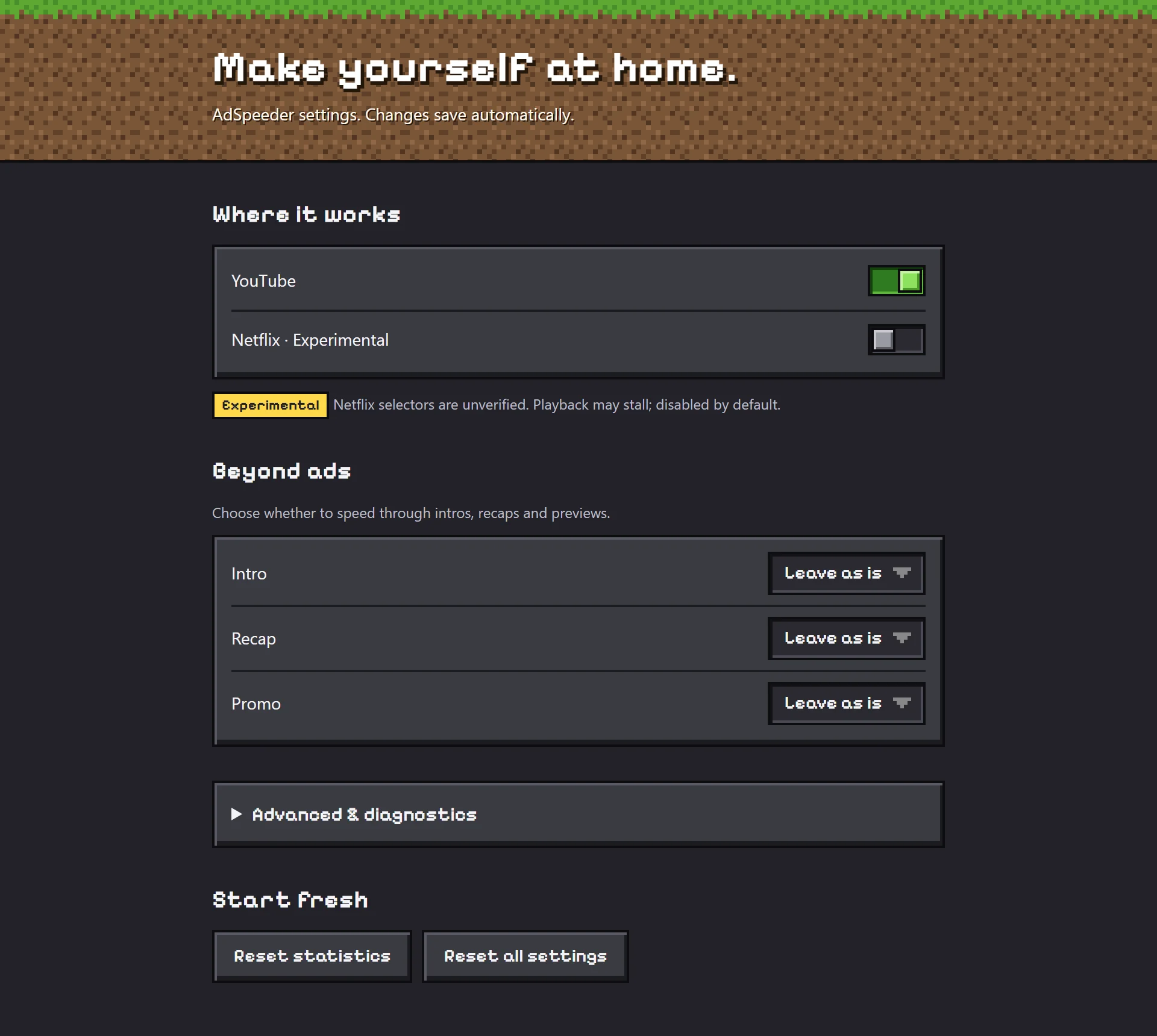
Netflix is off by default. To try it, enable Netflix · Experimental in Settings and use an account on a plan that shows ads.
The next steps are to investigate the CI timing failure and collect more examples of how the players behave. The extension is small; the list of ways a video player can surprise it is considerably larger.
Comments
Loading comments…